
Dolphin CMS
Help and FAQs
Browse practical guides for setting up your site and managing content, media, and the admin panel.
Browse by topic
Choose a topic or search all 100 questions.
How to Install Dolphin CMS?
Set up the CMS on XAMPP or a PHP and MySQL web server in a few steps.
- Start Apache and MySQL. Extract the CMS into your web server's document root, such as
htdocs/core_dolphin. - Create a new, empty MySQL database in phpMyAdmin.
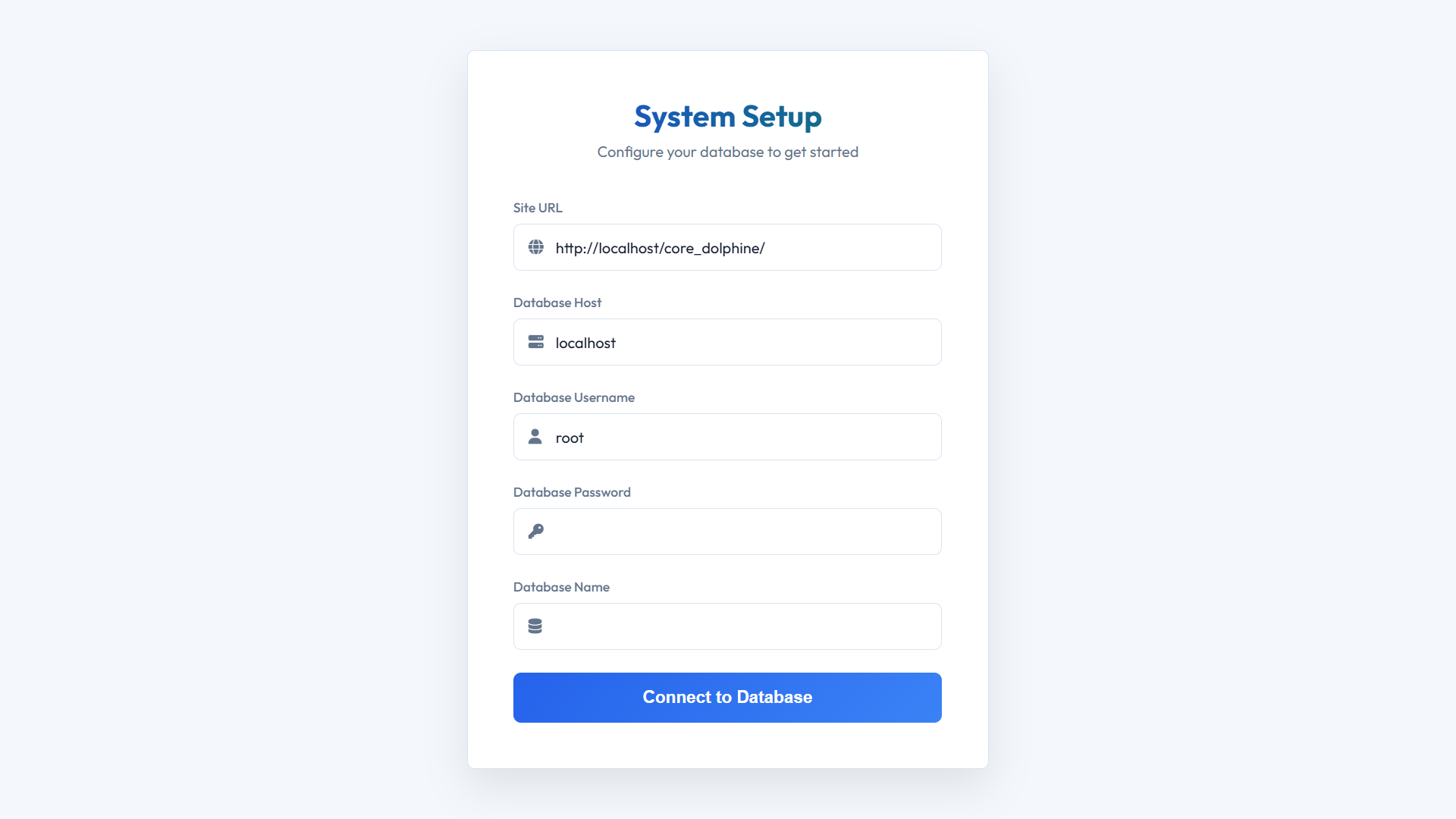
- Open the setup wizard at
http://localhost/core_dolphin/mask/setup/(replacecore_dolphinwith your project folder name). - Enter the site URL, database host, username, password and database name. For this local example, use
http://localhost/core_dolphin/as the site URL. - Test the connection, select an SQL file offered by the wizard, then choose Import & Finish Setup.
- Open
http://localhost/core_dolphin/to view the site and sign in to the admin panel.
Installation video
Video walkthrough coming soon.
A step-by-step video walkthrough will be available here soon.
Business settings and branding
8 helpful answers
How do I update business settings in Dolphin CMS?
Sign in to the admin panel and open Business Settings from the left-hand menu. Edit the business name, contact details, address, tax details, terms or status, then click Save. This screen is separate from Settings > Configuration.
How do I change the business name in Dolphin CMS?
Sign in to the admin panel, open Business Settings from the left-hand menu, and choose Edit for the business record. Update Business Name and click Save.
How do I change the business mobile number in Dolphin CMS?
Sign in to the admin panel, open Business Settings from the left-hand menu, and choose Edit for the business record. Update Business Mobile and click Save.
How do I change the business address in Dolphin CMS?
Sign in to the admin panel, open Business Settings from the left-hand menu, and choose Edit for the business record. Update Business Address and click Save.
How do I add or change the website logo in Dolphin CMS?
Open Settings > Configuration, choose a file in the Logo field, wait for the upload confirmation and preview, then click Save. The website header logo is separate from the business logo in Business Settings.
How do I add or change the business logo in Dolphin CMS?
Sign in to the admin panel, open Business Settings from the left-hand menu, and choose Edit for the business record. Select the new file in Business Logo, then save the form. This business identity logo is separate from the website header logo in Settings > Configuration.
How do I add or change the favicon icon in Dolphin CMS?
Open Settings > Configuration, select an icon image in the Favicon field, wait for the upload confirmation, then click Save. Refresh the website; browsers may cache the old favicon, so a hard refresh may be needed.
How do I change the website theme color?
Open Settings > Configuration, choose a color from Website Theme Color, then click Save to apply it to the front-end theme colors.
No matching questions in this topic.
Website pages and SEO
5 helpful answers
How do I add a new page in Dolphin CMS?
Open Content > Page and choose Add. Enter the page name and content for each active language, complete the SEO title, keywords, description and slug, choose a status, and click Save.
How do I edit an existing page in Dolphin CMS?
Open Content > Page, find the page in the list, and choose Edit. Update its language content, SEO fields, images or status, then click Save.
How do I delete a page in Dolphin CMS?
Open Content > Page, find the page and choose Delete. Confirm only after checking that you selected the correct page; deleting removes the page and its translations.
How do I upload or change an image on a CMS page?
Open Content > Page and edit the page. In Photo 1, Photo 2 or Main Photo, select the replacement image and wait for the upload to finish, then click Save. To remove an existing image, use its Remove Image button and save the page.
How do I write SEO details for a CMS page?
In Content > Page, add or edit the page and fill in SEO Title, SEO Keywords, SEO Description and SEO Slug. Use a clear title and a short description that describes that page, then save. The Google View preview shows the title, description, slug and main photo.
No matching questions in this topic.
Navigation menus
4 helpful answers
How do I add a menu item in Dolphin CMS?
Open Content > Menu and choose Add. Enter the default label and the destination URL, choose a parent menu if this should be a submenu item, add labels for active languages, and click Save.
How do I edit a menu item in Dolphin CMS?
Open Content > Menu, choose Edit beside the item, update its label, URL, parent or language labels, and click Save.
How do I delete a menu item in Dolphin CMS?
Open Content > Menu, choose Delete beside the correct item and confirm if prompted. Check the public navigation after deletion to ensure no other menu link depends on it.
How do I change the order of menu items?
Open Content > Menu and use the menu ordering area below the menu list. Drag items into the required order and save the menu order.
No matching questions in this topic.
Homepage sliders, team and testimonials
9 helpful answers
How do I add a homepage slider in Dolphin CMS?
Open Content > Slider and choose Add. Enter the title and detail in the required active languages, set the order number and status, upload the slider photo, and save.
How do I edit a homepage slider?
Open Content > Slider, choose Edit for the correct slide, change its translated text, order, photo or status, then save.
How do I delete a homepage slider?
Open Content > Slider, choose Delete for the slide and confirm if prompted. The slide and its translated text are removed.
How do I add a team member?
Open Content > Team and choose Add. Enter the member name, position and details in the active languages, set the order and status, upload a photo if the form offers it, then save.
How do I edit a team member?
Open Content > Team, choose Edit for the member, update the translated profile, order, photo or status, and save.
How do I delete a team member?
Open Content > Team, choose Delete for the correct member and confirm if prompted.
How do I add a customer testimonial?
Open Content > Testimonial and choose Add. Complete the testimonial form, add the customer details and any available photo or location fields, then save.
How do I edit a customer testimonial?
Open Content > Testimonial, choose Edit for the testimonial, update its details or photo, and save.
How do I delete a customer testimonial?
Open Content > Testimonial, choose Delete beside the testimonial and confirm if prompted.
No matching questions in this topic.
Blog posts and job applications
9 helpful answers
How do I add a blog post in Dolphin CMS?
Open Extras > Blog and choose Add. Add the title, author and content for active languages, complete the SEO title, keywords, description and slug, upload a main photo if needed, set status, and save.
How do I edit a blog post?
Open Extras > Blog, choose Edit for the post, update its content, SEO fields, main photo or status, and save.
How do I delete a blog post?
Open Extras > Blog, choose Delete for the correct post and confirm if prompted.
How do I add a job listing?
Open Extras > Job and choose Add. Enter the position, location, employee count, description, required skills, education and experience. Complete available language and SEO fields, set status and save.
How do I edit a job listing?
Open Extras > Job, choose Edit for the listing, update the role information, description, SEO details or status, then save.
How do I delete a job listing?
Open Extras > Job, choose Delete for the correct listing and confirm if prompted.
How do I review a job application?
Open Extras > Application to see submitted candidates. Open a record to review the applicant name, contact details, message, resume and related job profile. Use Edit to update its details or status.
How do I edit a job application?
Open Extras > Application, choose Edit for the application, update the available applicant details or status, then save.
How do I delete a job application?
Open Extras > Application, choose Delete for the correct application and confirm if prompted.
No matching questions in this topic.
Languages and themes
3 helpful answers
How do I add a language in Dolphin CMS?
Open Settings > Language and choose Add. Enter the language name, language code and sort order, set it to Active, and save. Active languages appear as translation fields in supported content forms.
How do I change or deactivate a language?
Open Settings > Language and edit the language. Change its name, code or sort order, or set it to Inactive, then save. Deactivating a language hides it from active language choices; it does not translate existing content.
How do I change the front-end theme?
Open Settings > Front Theme. Choose Activate Theme on a theme marked Frontend ready. Preview-only themes cannot be activated until their required front-end files are present.
No matching questions in this topic.
Database backups and plugins
4 helpful answers
How do I create a database backup?
Open Settings > Database Backup and choose Create Backup to save a full SQL backup in mask/database, or choose Create & Download to save and download a copy. Download a copy to another safe location as well.
How do I download a saved database backup?
Open Settings > Database Backup. In Saved Backup Files, choose Download beside the backup you want.
How do I restore a database backup?
Open Settings > Database Backup and choose Restore beside the required file. Restore deletes the current database tables and data before importing the backup, so first create and download a fresh backup and verify that you selected the intended file.
How do I activate or deactivate a plugin in Dolphin CMS?
Open Settings > Plugins. The switches on this screen control whether each module appears in the admin sidebar and on the dashboard. They do not install or uninstall plugins or turn off the module itself; they only change its visibility in those locations.
No matching questions in this topic.
File manager and calendar
5 helpful answers
How do I upload a file in the Dolphin CMS File Manager?
Open Tools > File Manager, browse to the target folder under uploads, and use the upload control to select one or more supported files. Wait for the success message and confirm the file appears in the folder.
How do I create a folder in the File Manager?
Open Tools > File Manager, browse to the parent folder, enter a folder name in Create Folder and submit. Files uploaded here are stored under the CMS uploads directory.
How do I add an event to the admin calendar?
Open Tools > Calendar and choose the new-event control. Enter the event title, start and end dates, category or color and description, then save.
How do I edit a calendar event?
Open Tools > Calendar and select the event. Update its title, dates, category or description in the event form, then save.
How do I delete a calendar event?
Open Tools > Calendar, select the event and use the delete action in its event form. Confirm the correct event before deleting it.
No matching questions in this topic.
Business directory listings
6 helpful answers
How do I add a directory category?
Open Directory > Category and choose Add. Enter a category name and description, set its status and save. Create categories before assigning directory listings to them.
How do I edit a directory category?
Open Directory > Category, choose Edit for the category, update its name, description or status and save.
How do I delete a directory category?
Open Directory > Category and delete the correct category. Check the listings assigned to it first; deleting a category does not automatically delete those listings.
How do I add a business to the directory?
Open Directory > List and choose Add Listing. Enter the business name, category, description, contact name, phone, email, website, address and status, then choose Save Listing.
How do I edit a directory listing?
Open Directory > List, choose Edit beside the business, update its contact details, category, address or status, and choose Save Listing.
How do I delete a directory listing?
Open Directory > List and choose Delete beside the correct business. Confirm the browser prompt to remove the listing.
No matching questions in this topic.
Shop products and customers
15 helpful answers
How do I add a shop brand?
Open Shop > Brand and choose Add. Enter the brand name, upload its image if needed, choose Active or Inactive, then save.
How do I edit a shop brand?
Open Shop > Brand, choose Edit for the brand, change its name, image or status and save.
How do I delete a shop brand?
Open Shop > Brand, choose Delete for the correct brand and confirm if prompted. Check whether products still use that brand first.
How do I add a shop product category?
Open Shop > Category and choose Add. Enter a category name, set its status and save.
How do I edit a shop product category?
Open Shop > Category, choose Edit for the category, update its name or status and save.
How do I delete a shop product category?
Open Shop > Category, choose Delete for the category and confirm if prompted. Check its products before deleting it.
How do I add a shop product?
Open Shop > Product and choose Add. Enter the product name and details for active languages, choose its category or brand if available, set price and status, upload the product photo and any gallery photos, then save.
How do I edit a shop product?
Open Shop > Product, choose Edit for the product, update its translated name or details, category, price, photos or status, and save.
How do I delete a shop product?
Open Shop > Product, choose Delete for the correct product and confirm if prompted.
How do I create a shop invoice?
Open Shop > Invoice and choose Add. Select the customer, enter invoice number and date, add the required products and quantities, review totals, tax and payment details, then save.
How do I edit a shop invoice?
Open Shop > Invoice, choose Edit for the invoice, update its customer, items, dates, payment or status, review the totals, then save.
How do I delete a shop invoice?
Open Shop > Invoice, choose Delete for the correct invoice and confirm if prompted. Keep a copy if the invoice is needed for accounting records.
How do I add a shop customer?
Open Shop > Customer and choose Add. Enter the customer details requested by the form, such as name and contact information, then save.
How do I edit a shop customer?
Open Shop > Customer, choose Edit for the customer, update their contact details and save.
How do I delete a shop customer?
Open Shop > Customer, choose Delete for the correct customer and confirm if prompted. Check whether invoices are associated with the customer first.
No matching questions in this topic.
Travel tours, hotels and cars
9 helpful answers
How do I add a tour in Dolphin CMS?
Open Travel > Tour and choose Add. Enter the tour name, type, location, duration, price, description, inclusions, exclusions and cancellation policy in active languages. Complete the SEO fields, upload photos, set status and save.
How do I edit a tour?
Open Travel > Tour, choose Edit for the tour, update its translated details, price, policy, SEO fields, photos or status, and save.
How do I delete a tour?
Open Travel > Tour, choose Delete for the correct tour and confirm if prompted.
How do I add a hotel?
Open Travel > Hotel and choose Add. Enter the hotel name, location, price, rating and description, complete the SEO fields, upload a main photo, set status and save.
How do I edit a hotel?
Open Travel > Hotel, choose Edit for the hotel, update its details, price, rating, SEO fields, photo or status and save.
How do I delete a hotel?
Open Travel > Hotel, choose Delete for the correct hotel and confirm if prompted.
How do I add a car to Travel?
Open Travel > Car and choose Add. Enter the car name, type, transmission, description, price and order, complete the SEO fields, upload the main photo and set status, then save.
How do I edit a travel car listing?
Open Travel > Car, choose Edit for the listing, update its translated details, price, SEO fields, photo, order or status and save.
How do I delete a travel car listing?
Open Travel > Car, choose Delete for the correct listing and confirm if prompted.
No matching questions in this topic.
Admin users and profile
5 helpful answers
How do I create a new admin user?
Open Access > Users and choose Add. Enter a username, password, name and contact details, assign the appropriate role and status, upload a profile photo if needed, and save. Give each person their own account.
How do I edit an admin user account?
Open Access > Users, choose Edit for the account, update its profile, contact information, role or status, and save.
How do I delete an admin user?
Open Access > Users, choose Delete for the correct account and confirm if prompted. Check that the account is not the only administrator before removing it.
How do I edit my own admin profile?
Open the account menu in the top-right of the admin panel and choose Edit Profile. Update your name, photo, email, mobile or address and click Save.
How do I change my admin password?
Open the account menu in the top-right of the admin panel and choose Change Password. Enter the new password, repeat it in Confirm New Password, then choose Change Password.
No matching questions in this topic.
Gallery categories and photos
9 helpful answers
How do I add a gallery category?
Open Gallery > Gallery Category and choose Add. Enter the category title and detail, upload a category photo if desired, set its status and save.
How do I edit a gallery category?
Open Gallery > Gallery Category, choose Edit for the category, update its title, detail, image or status, and save.
How do I delete a gallery category?
Open Gallery > Gallery Category, choose Delete for the correct category and confirm if prompted. Check for gallery items assigned to it first.
How do I add a photo to the Photo Gallery?
Create or choose a category first. Then open Gallery > Photo Gallery, choose Add, select the category, enter the photo title and order, upload the image, set status and save.
How do I edit a Photo Gallery image?
Open Gallery > Photo Gallery, choose Edit for the image, update its category, title, order, status or uploaded photo, then save.
How do I delete a Photo Gallery image?
Open Gallery > Photo Gallery, choose Delete for the correct image and confirm if prompted.
How do I add a video to the Video Gallery?
Open Gallery > Video Gallery and choose Add. Select a gallery category, enter the title, add the video embed code in Video Code, upload a thumbnail if needed, set order and status, then save.
How do I edit a Video Gallery item?
Open Gallery > Video Gallery, choose Edit, update its category, title, video embed code, thumbnail, order or status, then save.
How do I delete a Video Gallery item?
Open Gallery > Video Gallery, choose Delete for the item and confirm if prompted.
No matching questions in this topic.
Events and event photos
6 helpful answers
How do I add an event gallery entry?
Open Gallery > Event and choose Add. Enter the event title and detail, upload its photo if needed, set order and status, then save. This is the Events gallery module; dated calendar appointments are managed separately under Tools > Calendar.
How do I edit an event gallery entry?
Open Gallery > Event, choose Edit for the entry, update its title, detail, photo, order or status, and save.
How do I delete an event gallery entry?
Open Gallery > Event, choose Delete for the correct entry and confirm if prompted.
How do I add a photo to an event gallery?
First create the event under Gallery > Event. Then open Gallery > Event Gallery, choose Add, select the event, enter a title and order, upload the photo, set status and save.
How do I edit an event gallery photo?
Open Gallery > Event Gallery, choose Edit for the photo, update its event, title, order, status or image, and save.
How do I delete an event gallery photo?
Open Gallery > Event Gallery, choose Delete for the correct photo and confirm if prompted.
No matching questions in this topic.
Visitors and inquiries
3 helpful answers
How do I view website visitors in Dolphin CMS?
Open Tools > Visitor. The visitor list shows recorded visitor details such as location, IP address, device and browser when those details are available.
How do I view and manage inquiries?
Open Inquiry in the admin sidebar. Use the list to view, edit or delete an inquiry and check its status.
How do I export inquiries from Dolphin CMS?
The current Inquiry list does not provide a working export or CSV download button. Its table can be searched and paged, but those controls do not export records. A CSV export feature would need to be added to the Inquiry module.
No matching questions in this topic.